
You chose your Google Ads keywords carefully. Google doesn't only show your ads for those exact words. With phrase and broad match it also shows them for searches it judges related, and some of those are people who will never pay you: someone looking for a free version, someone looking for a job in your industry, a student looking for a course, someone wanting a template to do it themselves.
You pay for every one of those clicks. The good news is that Google tells you what people searched, in one report, and blocking the bad searches takes minutes once you know them. This guide shows you how to read that report, build a block list that doesn't block your customers by accident, and make it a 20-minute weekly habit.
It is written for business owners running their own Google Ads, with enough detail for a performance marketer to use as a team checklist.
The workbook takes your search terms export, flags every term with a "not a buyer" word, checks whether it converted, builds your negative-keyword block list in Google's match-type syntax, lists the terms to review by hand, and finds terms worth promoting to their own keyword. All numbers in this article are a fictional worked example unless a source is linked.
The short version
- Campaigns > Insights and reports > Search terms. Last 30 days. Add the Conversions column. Download.
- Flag every term containing a word from the starter list: free, cheap, jobs, salary, course, how to, template and so on.
- Before blocking a word, check whether any search containing it converted. If one did, block the exact bad searches instead of the word.
- Put the rest in a shared negative keyword list, mostly as phrase match, and apply it to every Search campaign.
- Review terms with no conversions after spending one target CPA. Promote terms with 2 or more conversions at or under target CPA to exact-match keywords.
- Repeat weekly for new campaigns, monthly once they settle.
Keywords versus search terms
This is the one idea the whole audit rests on.
- A keyword is what you bid on, for example
bookkeeping services. - A search term is what a person actually typed, for example
bookkeeping services jobs remote. - The match type decides how far apart they can be. Exact match keeps them very close. Phrase match lets people add words before or after. Broad match lets Google show your ad for anything it judges related.
The broader your match types, the more search terms you will see that you never thought of. Some will be great new customers. Some will be people you'll never sell to. The search terms report is where you tell them apart.
Step 1: pull the report
- In Google Ads, click Campaigns in the left menu, then Insights and reports, then Search terms (Google Ads Help: About the search terms report).
- Set the date range to the last 30 days. For a small account use 60 or 90 days, so each term has enough clicks to judge.
- Make sure these columns show: Search term, Campaign, Match type, Impressions, Clicks, Cost, Conversions.
- Download it and paste it into the workbook's Search terms tab from row 5.
For Performance Max campaigns there's a separate view in the same place, "Search terms and landing pages for Performance Max". If you run PMax, also read our PMax brand spend audit, because brand searches cause a different problem there.
What the report won't show you
Google leaves out searches that too few people made: "some search terms that don't have enough query activity are omitted", in Google's words. How much that hides varies by account. The best-known measurement is old but still instructive: when Google tightened the report in September 2020, Seer Interactive found the share of its clients' search cost with a visible search term fell overnight from 98.7% to 71.0%, and the share of clicks from 98.3% to 77.9% (Seer Interactive, 2020).
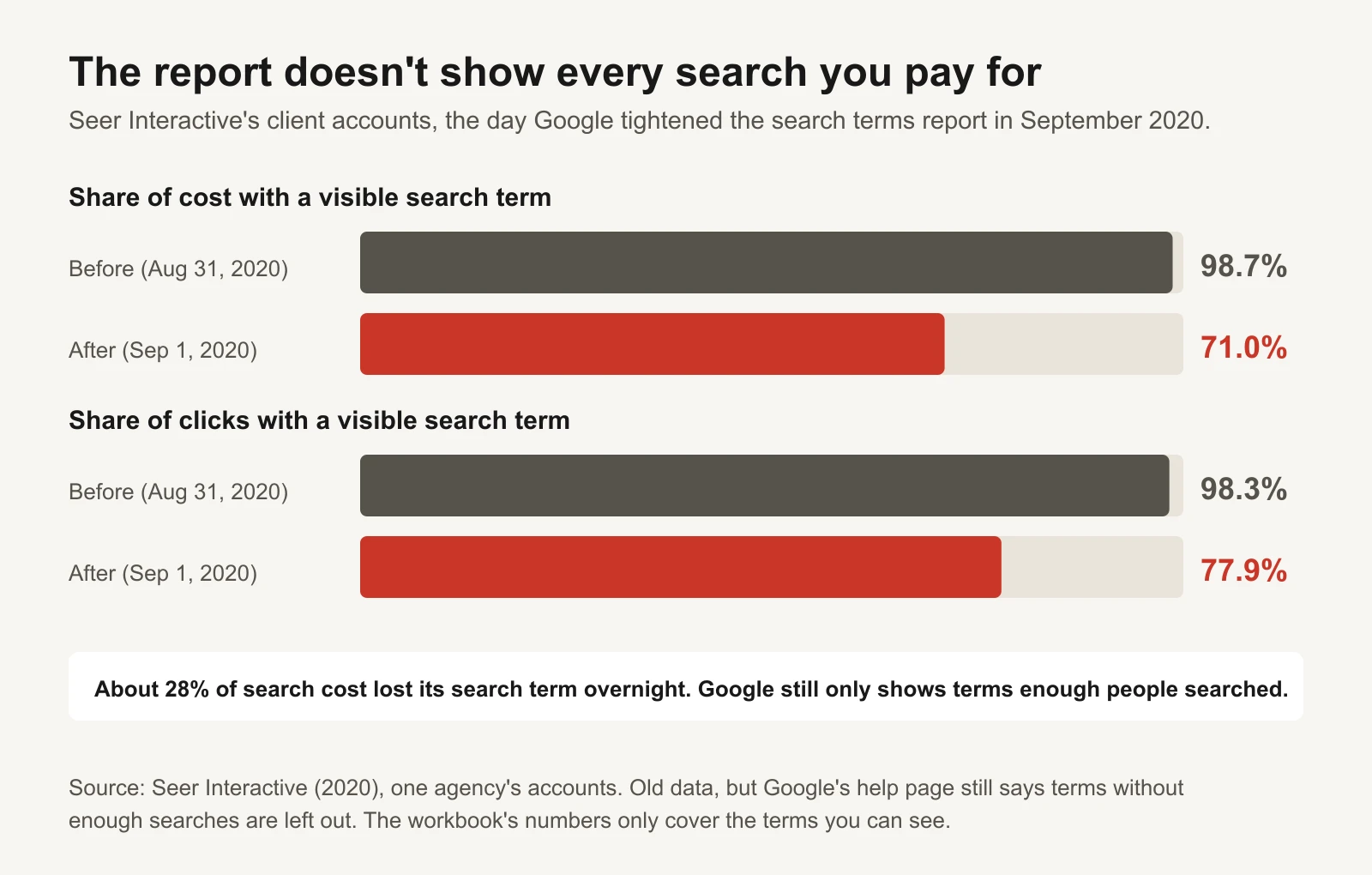
One agency's accounts, 2020. Your share will differ; the workbook only covers the terms you can see.
That is one agency's data from six years ago, so don't quote it as today's figure for your account. The lesson holds: you will never see every search you pay for, which is why the word-based block list matters. A negative for jobs blocks the job searches you can see and the ones you can't.
Step 2: flag the "not a buyer" words
Some words almost never come from a buyer, whatever the business. They turn up in nearly every account; one practitioner guide lists them as starter exclusion themes that "recur in nearly every account we audit" (Webtonic: negative keywords in Google Ads). Google's own example is an optician who sells eyeglasses adding "wine glasses" and "drinking glasses" as negatives (Google Ads Help: About negative keywords).
| Theme | Starter words | Why they rarely buy |
|---|---|---|
| Free and cheap | free, freebie, cheap, coupon | Looking for a version that costs nothing, or the lowest price |
| Jobs and careers | jobs, job, salary, hiring, careers, career, internship, resume | Want to work in your industry, not buy from it |
| Learning | course, courses, certification, training, class, degree | Want to learn to do it, often for a qualification |
| DIY and research | how to, diy, template, tutorial, what is | Want to do it themselves, or are just curious |
| Used and rental | used, rent, rental | Looking for second-hand or short-term |
Edit this list for your business before you use it. A dentist offering a free consultation should keep "free". A training company sells courses. A recruiter wants "jobs". The workbook's Words tab is yours to change: delete your customers' words, add the ones you keep seeing.
Step 3: check before you block
This is the step most people skip, and it's how a negative list ends up blocking real customers.
Here is a fictional bookkeeping firm, Tallyhouse, with 20 search terms and $8,735 of cost over 30 days. Its target cost per lead is $80.
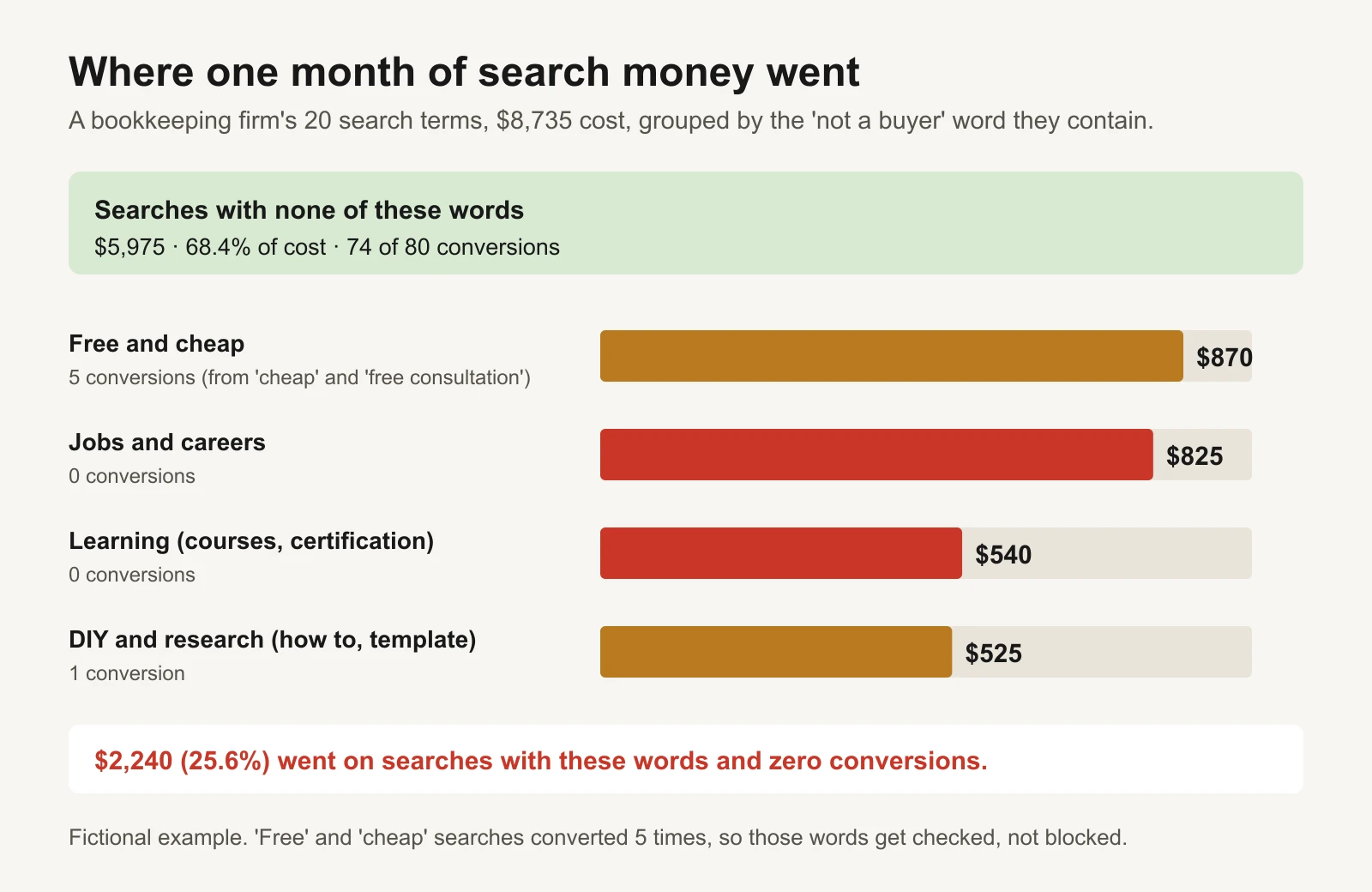
Fictional example. A quarter of the search budget bought nothing.
| Search term | Cost | Conversions | Word | Action |
|---|---|---|---|---|
| free bookkeeping software | $560 | 0 | free | Add negative |
| bookkeeping jobs | $420 | 0 | jobs | Add negative |
| bookkeeping course online | $360 | 0 | course | Add negative |
| bookkeeper salary | $245 | 0 | salary | Add negative |
| how to do bookkeeping for small business | $210 | 1 | how to | Check first: it converted |
| bookkeeping certification | $180 | 0 | certification | Add negative |
| cheap bookkeeping services | $175 | 2 | cheap | Check first: it converted |
| bookkeeping template excel | $165 | 0 | template | Add negative |
| remote bookkeeping jobs | $160 | 0 | jobs | Add negative |
| what is bookkeeping | $150 | 0 | what is | Add negative |
| free bookkeeping consultation | $135 | 3 | free | Check first: it converted |
Look at "free". The obvious move is to block it, and that would have blocked "free bookkeeping consultation", which brought 3 leads for $135, the cheapest leads in the account. "Cheap bookkeeping services" brought 2 leads at $87.50 each, close to target. These people want to buy; they just want a good price or a first call.
So the workbook doesn't put a word on the block list if any search containing it converted. It puts the word on a check first list, and suggests blocking the bad search itself instead: a phrase negative for "free bookkeeping software" blocks that search and any longer version of it, while "free bookkeeping consultation" keeps running.
In this example, the block list comes out as six words: "jobs", "salary", "course", "certification", "template" and "what is", plus the phrase "free bookkeeping software" from the check list. That covers $2,240, or 25.6% of the search cost. If those clicks had simply not happened and every lead had still come in, cost per lead would have been $81 instead of $109. Real accounts don't move that cleanly, which is why you check again a month later.
Step 4: pick the right match type for each negative
Negative keywords use match types too, and they behave differently from normal keywords (Google Ads Help: About negative keywords):
- Broad match negative (
free): blocks searches that contain all the words, in any order. - Phrase match negative (
"free bookkeeping"): blocks searches that contain the words in that order, with anything before or after. - Exact match negative (
[free bookkeeping app]): blocks only that exact search, with no extra words.
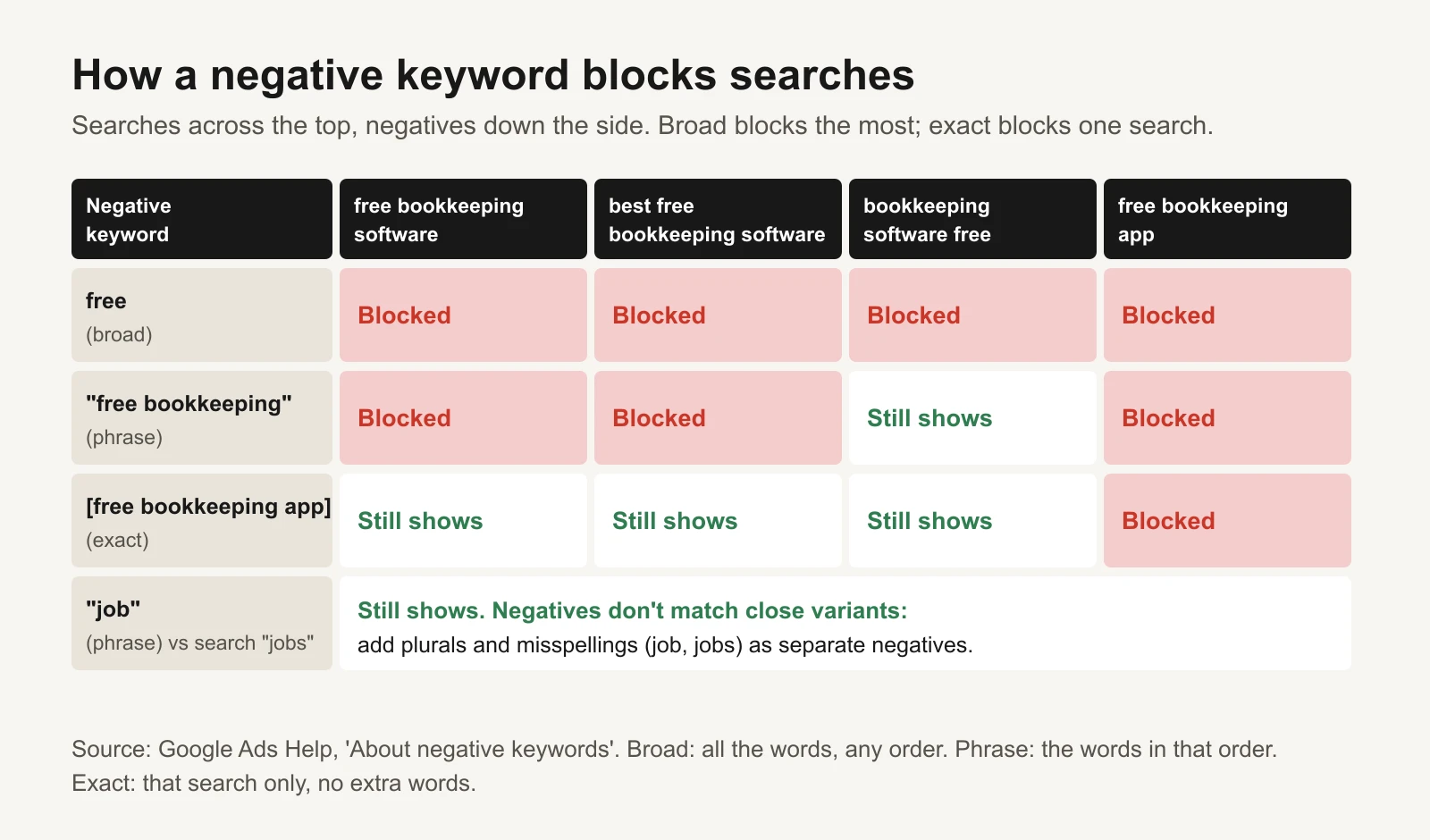
Broad blocks the most, exact the least. Phrase is the sensible default for single "not a buyer" words.
The most important line on Google's page: negative keywords don't match close variants. A negative for job does not block jobs. A negative for course doesn't block courses. Add plurals and common misspellings yourself; the starter list does this for the obvious ones.
Google also warns that too many negatives can make your ads reach fewer customers. A list built from words that never converted, checked against your own data, is the safe kind.
Step 5: put the list where it works everywhere
Add the block list once, as a shared negative keyword list, and apply it to every Search campaign. Google allows up to 20 negative keyword lists per account, each with up to 5,000 negatives, and a change to the list applies to every campaign that uses it (Google Ads Help: About negative keyword lists).
- Click the Tools icon, then Shared library, then Negative keyword lists (some accounts show Exclusion lists, with a Negative keyword lists tab).
- Create a list called "Not a buyer".
- Paste column B from the workbook's Negatives tab. The quotes and brackets are already in Google's syntax.
- Apply the list to your Search campaigns.
There is also an account-level negative list, up to 1,000 negatives, that applies to all Search and Shopping inventory, including Performance Max (Google Ads Help: About account-level negative keywords). Use it only for words that should never trigger any ad you run, such as "jobs" for most stores. Keep the rest in the shared list where you can see and edit them.
Step 6: review the rest by hand
Not every bad search has a tell-tale word. The workbook gives every term one action, asking in order:
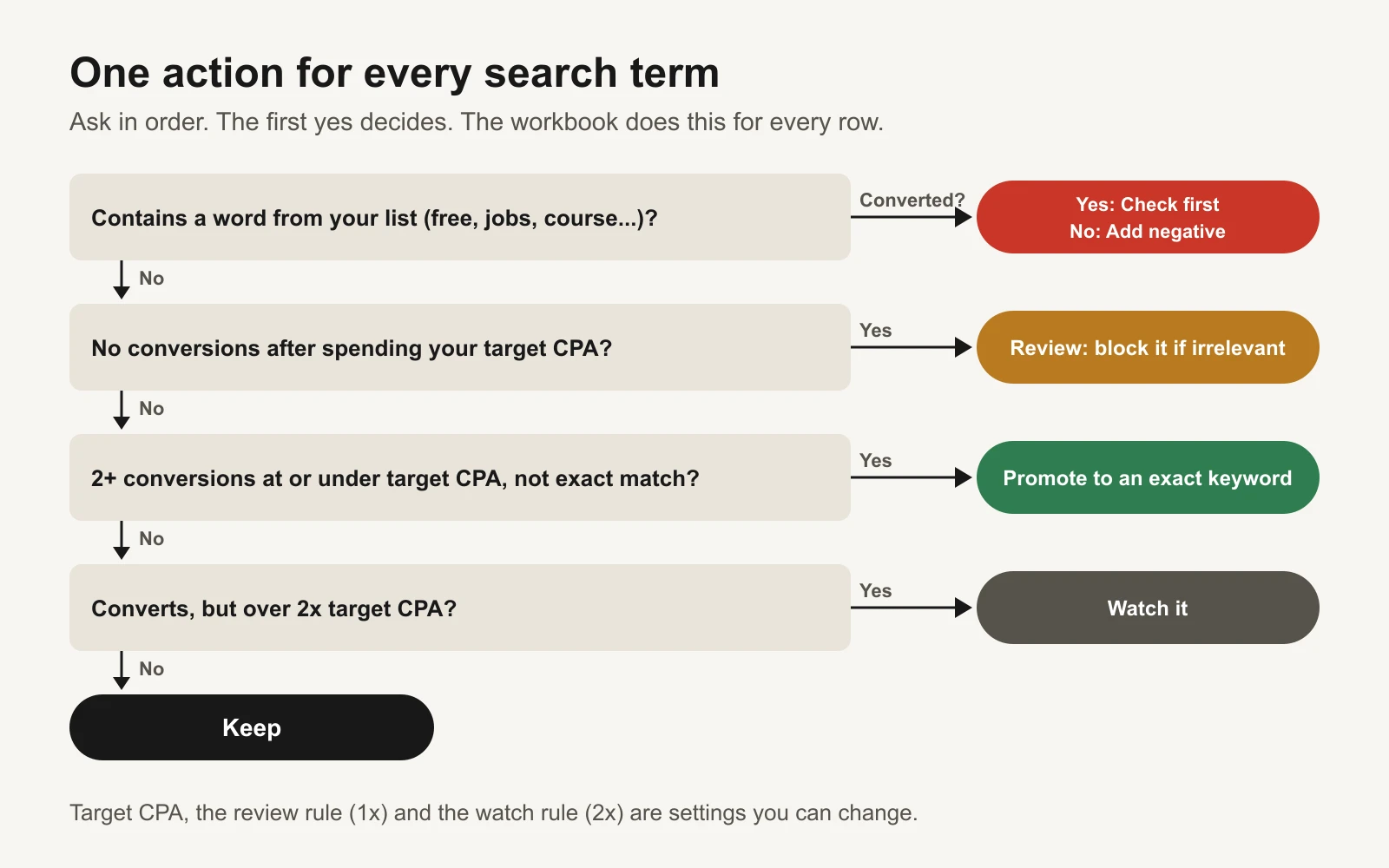
The first yes decides. Each threshold is a setting in the workbook.
In the example:
- Review: "accounting software" spent $400 with no leads. It isn't caught by any word, but a bookkeeping service isn't software. A phrase negative for "accounting software" fixes it. You decide, because only you know whether it's irrelevant or the landing page is the problem.
- Promote: "bookkeeping services for small business" (24 leads at $61), "catch up bookkeeping" (5 at $58) and "bookkeeping for contractors" (3 at $77) all convert at or under the $80 target. Adding each as an exact-match keyword gives you its own bid, ad and landing page. "Small business bookkeeper" is already an exact-match keyword, so it stays as it is.
- Watch: "tax preparer near me" cost $330 for one lead. It converts, so don't block it yet, but at four times target it can't keep that budget.
The high-intent keywords list is a good source of ideas for the terms you promote, and the negative keywords guide for lead generation has more starter words for service businesses.
Make it a 20-minute weekly habit
| When | What | Time |
|---|---|---|
| Weekly, for the first 2 months of a campaign, or after any match-type change | Pull 7 or 14 days, add negatives, check the review list | 20 minutes |
| Monthly, once a campaign is stable | Pull 30 days, update the Words tab, promote winners | 30 minutes |
| Quarterly | Read the shared list top to bottom. Remove any negative that now blocks something you sell | 15 minutes |
Two habits make it work. Write down every negative you add and the date, so if leads drop you know what changed. And re-read the "check first" list every month, because a word that never converted at $500 a month may start converting at $5,000.
Common mistakes
- Blocking a word without checking it converted. The "free consultation" mistake. It's the expensive one.
- Using broad negatives for multi-word phrases. A broad negative for
free softwareblocks "software for free accounting" too. Use phrase. - Forgetting plurals. Negatives don't match close variants.
jobandjobsare two negatives. - Adding the brand name as a negative at account level. It will block your own brand campaign.
- Judging a term on two clicks. Wait until it has spent about one target CPA before deciding it doesn't work.
Tools and repos that help
These are public, maintained projects (checked 17 November 2026):
| Repo | What it is | Who it's for |
|---|---|---|
| googleads/google-ads-mcp | Google's MCP server, a connector that lets AI assistants read the Google Ads API with GAQL. Its few write tools use a propose-then-confirm step | Teams who want an AI assistant to pull the search terms report each week |
| googleads/google-ads-python | Google's official Python client library for the Google Ads API, including the search term view | A developer who wants the export to fill the workbook automatically |
Or let GaaS run it
GaaS is an AI agent that creates, launches and optimizes Google and Meta ads from three inputs: your website, a spend limit and a one-line goal. It reads your search terms, proposes negatives and new keywords in plain words, and checks whether a word ever converted before suggesting you block it. Nothing that changes spend happens without your approval. If you'd rather do it yourself, the workbook below is yours to keep.
Limits of this audit
- The report omits low-volume searches, so it never shows all your spend. Word-based negatives help cover what you can't see.
- Word matching can't judge intent. Read every "check first" and "review" row yourself.
- Conversions arrive late. A term with no conversion today may have one next week, especially for expensive services.
- The review (1x target CPA), watch (2x) and promote (2 conversions) rules are starting points we chose, not Google rules. Change them in Settings.
- The Seer figures are from 2020 and one agency's clients. We use them to show the effect, not as a current benchmark.
Sources
- Google Ads Help: About the search terms report
- Google Ads Help: About negative keywords
- Google Ads Help: About negative keyword lists
- Google Ads Help: About account-level negative keywords
- Seer Interactive: Google Ads removes search terms for 28% of paid search budgets (September 2020)
- Webtonic: Negative keywords in Google Ads
- GitHub repositories listed above, checked 17 November 2026.